Connect ChatAgentLab to Shopify
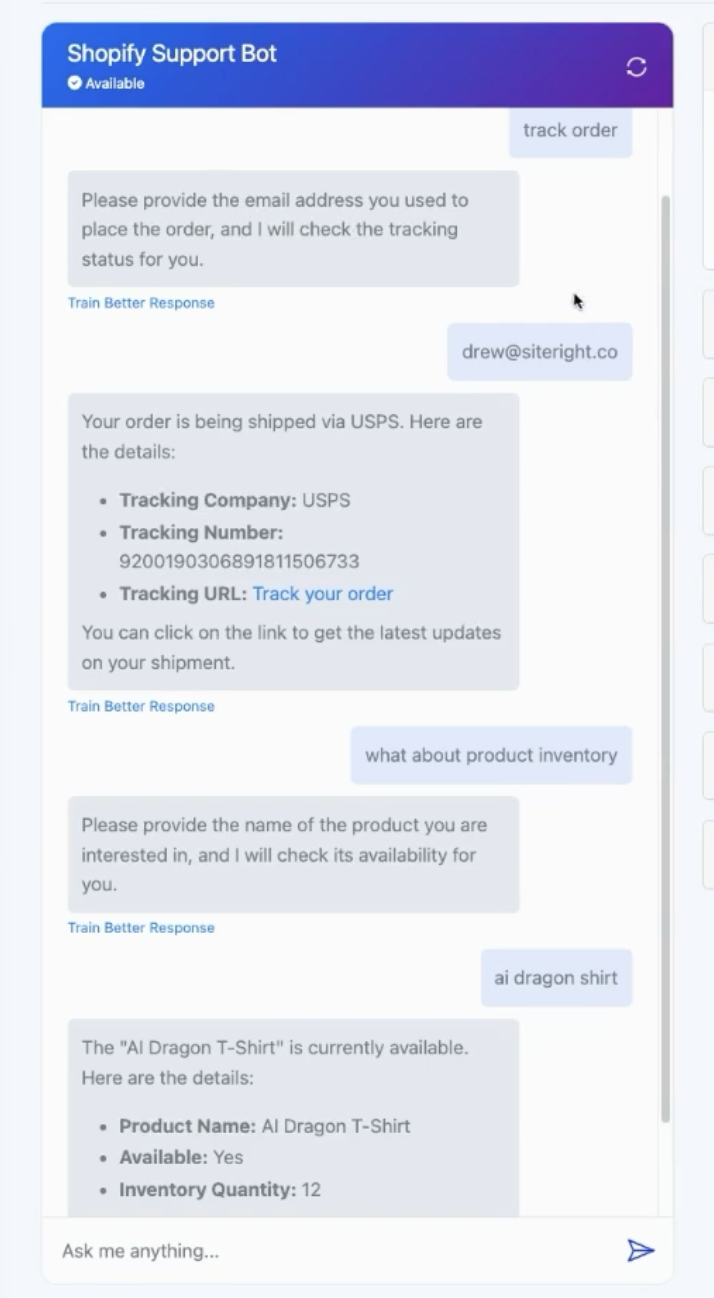
This guide will walk you through how to connect an AI agent from ChatAgentLab to Shopify, enabling the agent to retrieve live inventory and order tracking data based on a customer's email address.
<div style="padding: 1em; background-color: #1e1e1e; border-left: 4px solid #3b82f6; font-style: italic; color: #ccc;">
This allows your AI agent to provide real-time answers to product inquiries and order status directly within the conversation.
</div>
🔧 What You Need Before You Start
- An active Shopify store with admin access
- A published AI agent in ChatAgentLab
- A Replit account (free)
- ReqBin.com for testing your API
Step 1: Create a Custom App in Shopify
- Log in to your Shopify admin panel.
- Go to Apps > Develop apps for your store.
- Click Create an app, and name it something like
ChatAgentConnector. - Under Admin API access scopes, enable:
read_productsread_orders
- Click Save, then Install app.
- Copy your Admin API Access Token and store name (e.g.
your-store-name).
Step 2: Generate Code Using ChatGPT
<div style="padding: 1em; background-color: #1e1e1e; border-left: 4px solid #3b82f6; font-style: italic; color: #ccc;">
<strong>Which prompt should I use?</strong><br>
Use the <strong>Shopify-Specific Prompt</strong> if you're following this tutorial as-is and want a quick, ready-made solution.<br>
Use the <strong>Advanced Prompt Template</strong> if you're building something custom, using a different API, or want to tailor the function to specific business logic.
</div>
🔸 Shopify-Specific Prompt
Write the python code (flask app) for a new custom function that will get Shopify product availability and order tracking based on email. Provide the complete code for the Flask app and the JSON parameters for the AI custom function.💡 Advanced Prompt (Template)
I want to create a custom function for my AI agent that retrieves information based on user input.
The function should be able to accept a {input_type} and return the corresponding {output_type} using the {API_name}.
The function should be implemented as a Flask web application.

Here are the details:

1. The function name should be `{function_name}`.
2. It should use the {API_name} to fetch the {output_type}.
3. The Flask app should have an endpoint `/get_{output_type}` that accepts a POST request with a JSON body containing the {input_type}.
4. The API response should be parsed to extract the relevant {output_type} information.
5. If there are any errors (HTTP errors, network errors, or invalid input), they should be handled gracefully and return appropriate error messages.
6. The JSON parameters for the custom function interface should be provided.

Please provide the complete code for the Flask app, and also the JSON parameters for the custom function interface.

For example, if the function is to get the current weather for a city, the input would be the city name, and the output would be the current weather details (temperature, condition, wind speed, humidity). The function should use the WeatherAPI.

Replace the placeholders accordingly:

- `{input_type}`: The type of input the function will accept (e.g., "city name").
- `{output_type}`: The type of output the function will return (e.g., "current weather").
- `{API_name}`: The name of the API to be used (e.g., "WeatherAPI").
- `{function_name}`: The name of the function (e.g., "getWeather").

Example:

I want to create a custom function for my AI agent that retrieves information based on user input. The function should be able to accept a city name and return the corresponding current weather using the WeatherAPI. The function should be implemented as a Flask web application.

Here are the details:

1. The function name should be `getWeather`.
2. It should use the WeatherAPI to fetch the current weather.
3. The Flask app should have an endpoint `/get_weather` that accepts a POST request with a JSON body containing the city name.
4. The API response should be parsed to extract the relevant weather information.
5. If there are any errors (HTTP errors, network errors, or invalid input), they should be handled gracefully and return appropriate error messages.
6. The JSON parameters for the custom function interface should be provided.

Provide the complete code for the Flask app.
Provide the JSON parameters for the custom function interface.
Provide the name of the function.
Provide the short description of the function.
Provide the info to test in reqbin.
The API keys should be stored as a variables.
Step 3: Host the Code with Replit
- Create a new Python project in Replit.
- Paste in the Flask code generated by ChatGPT.
- Create a Secret named
ACCESS_TOKENand paste in your Shopify Admin API token. - Click Run to test that the code compiles correctly.
- Click Deploy, then copy the public URL Replit gives you (e.g.
https://shopify-agent.johndoe.repl.co).
<div style="padding: 1em; background-color: #1e1e1e; border-left: 4px solid #facc15; font-style: italic; color: #eee;">
⚠️ Replit does not create URLs like <code>https://shopify-agent.johndoe.repl.co</code>. Your actual public URL will look more like:<br>
<code>https://your-project-name.username.repl.co</code><br><br>
You can find this after running or deploying your project inside Replit.
</div>
Step 4: Test the Function Using ReqBin
- Go to Reqbin.com.
- Set the method to POST.
- Paste in the Replit URL.
- Use this JSON for inventory:
{
  "product_name": "T-shirt"
}
Or this JSON for order tracking:
{
  "email": "customer@example.com"
}- Click Send, and verify that the response is correct.
Step 5: Connect the Function to ChatAgentLab
- Open your AI agent in ChatAgentLab and go to the Labs tab.
- Click New Function > Custom Function.
- Fill in the fields for product availability:
Alias: get_product_availability (you can name it anything)
Value (URL): Paste in the public Replit URL
Description: e.g., "Returns product availability based on product name."
Parameters:
{
  "type": "object",
  "properties": {
    "product_name": {
      "type": "string",
      "description": "Name of the product the customer is asking about"
    }
  },
  "required": ["product_name"]
}
🔷 Add a Second Function for Order Tracking
Repeat the same steps to create a second function, this time for tracking orders based on customer email.
Alias: get_order_tracking_status
Value (URL): Use the same Replit URL
Description: e.g., "Returns tracking info for most recent order based on email."
Parameters:
{
  "type": "object",
  "properties": {
    "email": {
      "type": "string",
      "description": "Customer's email address"
    }
  },
  "required": ["email"]
}
Step 6: Update the Agent’s Prompt Logic
Add this to your system prompt or instructions:
If the user asks about product availability, use `get_product_availability` and return product name, variants, and inventory quantity.
If the user asks about order status, use `get_order_tracking_status` with the customer's email and return tracking info.
<div style="padding: 1em; background-color: #1e1e1e; border-left: 4px solid #3b82f6; font-style: italic; color: #ccc;">
You don’t need to manually copy any code here. Simply use one of the prompts above to generate the full Flask code dynamically with ChatGPT. This ensures your function stays adaptable to future needs.
</div>
🚀 Ready to Launch!
Your AI agent is now ready to use in your Shopify store – through live chat, a pop-up widget, or API integration.
Need help? Reach out through ChatAgentLab’s support center.